How to Share an Encrypted File With a Separate Access Code
Use Encrypted + code in Pixurity Send. Your browser encrypts the file before it is uploaded and shows you a link and a separate access code. Send the link by email and give the code another way, such as by phone. The link alone cannot decrypt the file.
In the example below, the sender shares a hypothetical file called contract-draft.pdf with a colleague.
Sender steps
- Open Pixurity Send and choose Encrypted + code.
- Select contract-draft.pdf. Your browser encrypts it before the upload starts.
- Wait for the upload to complete. Pixurity then shows the share link and the access code for this upload.
- Email the link to your colleague.
- Give them the code through a different channel — read it out on a phone call, or send it in a separate messaging app. Don't put the code in the same email as the link.
Recipient steps
- Open the link from the email. Without the code, the file and its name stay hidden.
- Enter the code received by phone or the other channel. A wrong code is rejected.
- With the correct code, the file is decrypted in the browser and can be downloaded — within 24 hours of the upload completing.
What the recipient sees: a tested walkthrough
We sent a synthetic one-page test file, pixurity-sample.pdf (672 bytes, no personal data), with Encrypted + code in the Pixurity preview on 19 November 2026, then opened the link as a recipient in fresh desktop (Chromium) and mobile-sized browser windows. The screenshots show only the recipient card; the address bar, share link and code are cropped out.
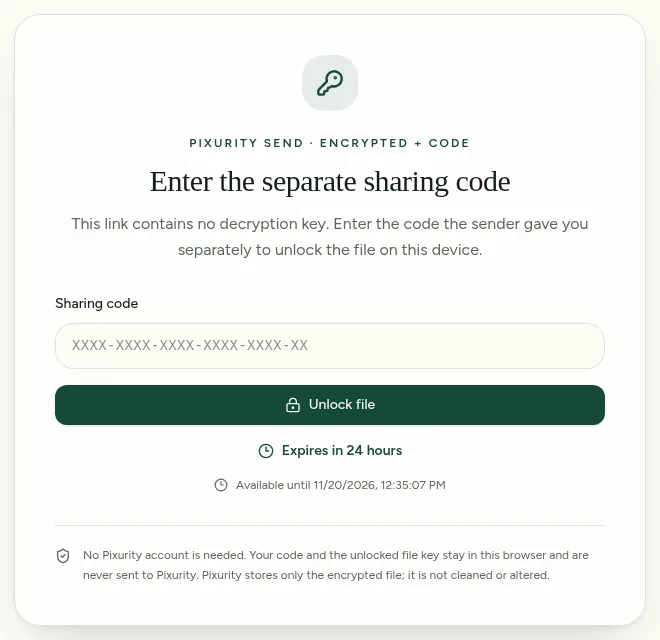
What this state means: the recipient has the link but not the code. The file name is hidden and there is no download button. In our test, a made-up code was rejected and the page stayed locked.
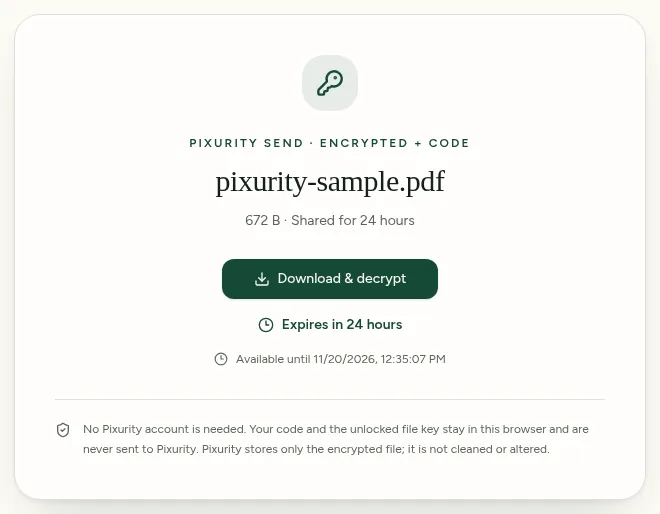
What this state means: the code was checked in the recipient's browser and unlocked the file key there. Download & decrypt saves the decrypted file. In our test, the downloaded PDF was byte-for-byte identical to the original (matching SHA-256 hashes) on both desktop and mobile-sized windows, and the code did not appear in any network request the recipient's browser made.
How the three modes compare
Encrypted + code: the file is encrypted in your browser, and opening it needs both the link and the separate code.
Encrypted Send: the file is also encrypted in your browser, but the decryption key is included in the link itself, after the # sign. Anyone who has the complete, unexpired link can open the file.
Quick Send: the file is not encrypted in your browser before upload. Anyone with the link can download it until it expires.
What encryption does not do
Encryption protects the file while it is stored and shared. It does not remove metadata from the file, and the downloaded PDF is not password-protected — once decrypted and saved, it opens like any other PDF. To remove supported document metadata first, use the PDF Metadata Remover.